# Setting Up and Running CMake
Table of Contents
CMake Tutorial Series
For this multipart series, we will look into CMake development tool by Kitware. CMake is an open source build generator tool useful for any C/C++ developer who wants to control their native and cross-platform builds. CMake doesn’t itself build executables but calls other tools to create them.
Series Goals
We will be peering into the inners of CMake build system, we will examine some key and important CMake features including CMake, CTest, and CPack.
- CMake is a cross-platform build and configuration tool that links compilers and build generators together by producing executables for different operating systems (OS).
- CTest is a test runner/driver that initiates project’s tests, static/dynamic analyzers, documentation, reports, and more.
- CPack is a packaging tool that helps deploy installers and repackage source code onto the target’s device.
Prerequisites
For this series, some required development tools are needed to be installed on your computer. Depending on the OS, follow the installation for Windows, MacOS, or Linux. However since there’s so many different Linux distributions, some research on your end is required on how to install the packages… so, you’re on your own for this one!
To follow along with this series, we need to add the follow dependencies on your computer:
- cmake (build, testing, and packaging tool — the star of this series)
- make (build tool)
- gcc/g++ (C/C++ compilers)
- tree (CLI tool that prints file structures)
- git
However depending on what OS (Windows or MacOS) you’re on, different installation process will occur. Refer to your OS’s directions below.
Installing on Windows
If you’re on Windows, I would suggest downloading a package manager like Chocolatey. Then follow the instructions provided by Chocolatey and make sure you install it for “individual use”.
Once downloaded, add make (build tool), cmake (build, testings, and packaging tool), and gcc/g++ (compilers). Open up your favorite command line interface (CLI) and type the following:
$ choco install make cmake mingw tree git -yInstalling on MacOS
If you’re on MacOS, I would suggest installing Homebrew as your package manager. Follow the instructions on Homebrew website for installation.
Once downloaded, add make (build tool), cmake (build, testings, and packaging tool), and gcc/g++ (compilers). Open up your favorite command line interface (CLI) and type the following:
$ brew install make cmake gcc g++ tree git -yInstalling on Linux
Depending on what distro your on, use that specific distro’s package manager and install cmake, make, and gcc/g++. Good luck! You’re on your own on this one. I believe in you! 😆
CMake Basics
Before we get into the details of CMake, CMake works by identifying a file called CMakeLists.txt and parses commands inside that file. It must be exactly named “CMakeLists.txt” or CMake won’t understand what to do.
Always put a CMakeLists.txt at the base of your directory and this particular CMakeLists.txt is referred as the root CMakeLists.txt. This is by far the most important CMakeLists.txt in your project. Think of it like the base of a tree, everything else grows from the root.
However, if your project is getting complicated, it isn’t uncommon to add supplementary CMakeLists.txt in other subdirectories. We will eventually investigate into this paradigm later in the series. It helps your CMake builds look cleaner and minimizes a monolithic root CMakeLists.txt and eventually minimize debugging efforts.
How Does CMake Produce an Executable?
Remember, CMake is a build generator, which means it calls other native tools on your computer to create an executable. That’s why we need to install dependencies from previous sections above. CMake must acknowledge the other tools on your system, or CMake will throw an error.
Luckily, only three stages must occur before an output is produced. These stages are configuration, generation, and build stages.

CMake must pass these stages in order; however for the purpose development, you can combine the configuration and generation stages in one CLI command using flags/options. In CMake, flags/options are signified by a hyphen ”-” followed by a capital letter or a dash ”—” followed by a word. Think of flags/options as adding more details to CMake to config, generate, and build projects.
CMake Coding Example
Now it’s time to start coding!
Anywhere on your computer, add a directory called “cmake-tutorial” and inside this director, add “hello-world.cpp” and “CMakeLists.txt” files.
“hello-world.cpp” is a small program that just print “Hello World” to the command line and CMakeLists.txt is the script that builds the program.
#include <cstdio>#include <cstdlib> // EXIT_SUCCESS
int main(){ std::printf("Hello World\n"); return EXIT_SUCCESS;}cmake_minimum_required(VERSION 4.2)project(Tutorial)add_executable(hello hello-world.cpp)Once completed, your folder should look something like this:
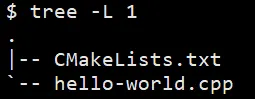
Finally with everything in place, let’s get configuring!
Configuration Stage
Lets examine the configuration stage!

During the Configuration stage, CMake reads the CMakeLists.txt and checks to see what dependencies, compilers, linkers, paths, and system information are known to CMake. Basically this stage names and sets what CMake should be working with, and sets the environment/cache variables for future actions.
In order to acknowledge these steps to CMake, go to the directory where the “hello-world.cpp” and “CMakeLists.txt” and type in the following:
$ cmake -B build -S .Oops, it seems like something went wrong.
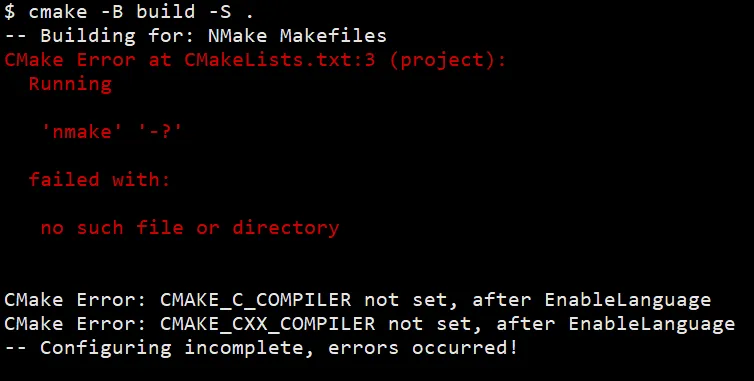
Before the error was thrown, it seems like it was trying to build for “NMake Makefiles” on line 3. CMake is telling us that we’re generating the build using wrong type. Previously, we had to download MinGW. CMake will be using that generator, but it’s not. Now let’s configure CMake for the “MinGW Makefiles” instead of “NMake Makefiles”.
Generation Stage
Lets examine the generation stage!

CMake has the ability to use different generation systems. To see all the possible generation types, execute the following command:
$ cmake --helpNow scroll down all the way to the bottom, the command will list out all the possible generators. Pick one that best suits you depending on your operating system. However we did install MinGW. I would suggest “MinGW Makefiles”.
Let’s delete the build folder, and use this new command to directly state what generator that should be used.
$ rm -fr build$ cmake -G "MinGW Makefiles" -B build -S .Upon linking the generator flag/option (-G), the configuration and generation stages should produce a successful build. The output is seen below.
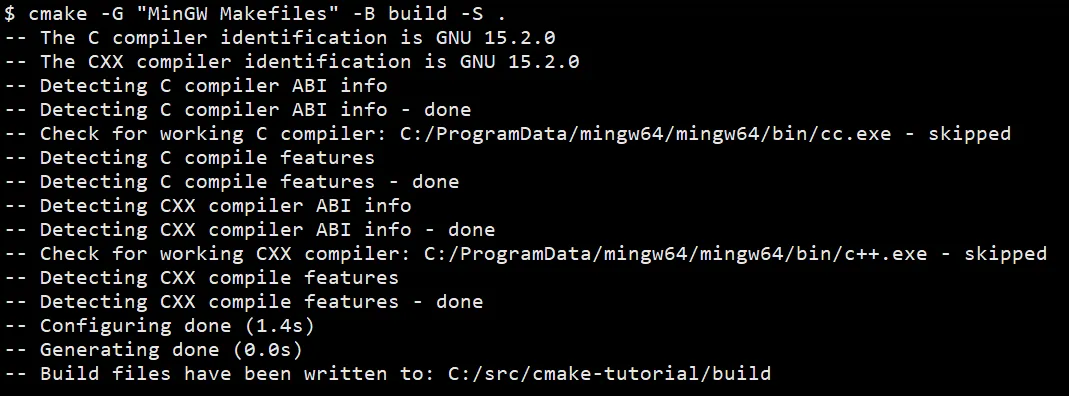
After applying the new generator flag/option, you can see that CMake automatically found the C and C++ compilers on the system via downloading MinGW. It also took the Configuration stage 1.4 seconds and the Generation stage 0.0 seconds, confirming the configuration and generation stages are complete and occur at the same time.
Now finally, we have an output inside the build directory.
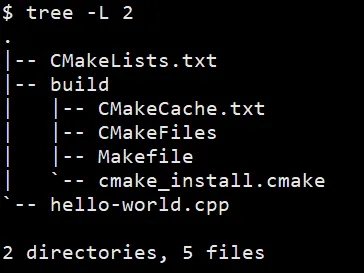
Take a look in the “build” folder that CMake auto-created during these steps. Just take a mental note that CMake DOES produce something during the configuration and generation stages. Most of it is meaningless to us at the moment.
Generator Stage (Small) Optimization
We’ve seen that you need to add a -G flag to the command line every time during the configuration and generation stages. It can be annoying to type this out every single time. However, there is a small trick to speed up the process.
Open up your command line and type in the following:
$ export CMAKE_GENERATOR="MinGW Makefiles"What this does is it creates a CLI variable on your system to understand that it needs to generate builds for “MinGW Makefiles”.
To verify you set the CLI export variable, type ‘export’ into the CLI and scroll down.
$ exportYou should see this somewhere in the wall of text:

Now lets configure the project again. Delete the build folder again, and run the command below. You should see it will configure and generate the files successfully.
$ rm -fr build$ cmake -B build -S .Once again, the configuration and generation step should build without errors!
Building Stage
Lets examine the build stage!

The build stage allows CMake to create build target artifacts, which include executables, libraries, and so much more. However in our case, we will only create a simple executable.
Go to the directory with the “hello-world.cpp” and “CMakeLists.txt” file, and execute the following commands:
$ rm -fr build # deleting build folder$ cmake -G "MinGW Makefiles" -B build -S . # config/generation stage$ cmake --build build # build stageThe CMake compiles and links our project together for us.

After the command successfully builds, now open the “build” directory on your system and file the executable.
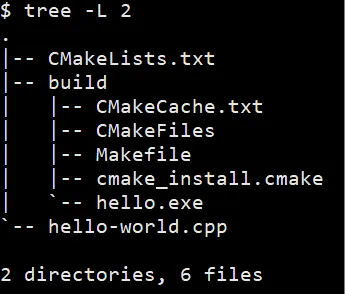
Now run it.
$ cd build # move to build directory$ ./hello.exe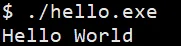
Congratulations, you built your first executable using CMake.
Different Build Configurations
Now if you want more control over what type of build configuration, CMake allows you to change it. At the build command, you can change it by adding a build flag/option at the end.
Of course CMake supports four different types, and they are:
- Debug
- Release
- RelWithDebInfo
- MinSizeRel
$ cmake --build build --config ReleaseNow run it, just like the previous executable, however this time it built for release configuration.
$ cd build # move to build directory$ ./hello.exeBuilding in Verbose Mode
To help with debugging CMake scripts, there’s a CMake mode called “verbose mode”. CMake will display all the build information during the build stage, and switching into this mode can help with debugging issues. If you happened to run into an unknown issues, try verbose during your builds, and it might catch something obvious.
Try it now, and try it in different build configurations:
$ cmake --build build -- config Release --verboseJust keep this in mind, and it can be powerful.
Summary
In this article, we examined some of the overall features of what CMake can do. We downloaded some dependencies onto your machine for CMake development. This includes downloading your favorite package manager.
Then we learned about how CMakeLists.txt are files specifically used for CMake development. Remember, you have to name it exactly “CMakeLists.txt” or your machine won’t recognize it.
We looked at the three stages — configure, generate, and build — and the commands used to create a simple executable. We introduced the G, B, and S flags/options and when to use them.
After the configure and generate stage, we looked into building the executable and how to configure the output builds to different configuration types like “Debug” and “Release”. Once completed, we found out how to run the executable on the command line and saw the simple “Hello World” printed to the console.
We also introduced the —verbose flag to your builds. Using the verbose flag, CMake understand to print out everything to the command line and hopefully reveals some simple, stupid errors.
Resources
Modern CMake for C++ by Rafał Świdziński